
You can connect any MCP server to ZeroTwo, not only the apps in the connector catalog. Choose Add > Add MCP server in Customize or in Settings > Plugins and fill in the form. When a tool on your server ships an interactive widget (an MCP App), ZeroTwo shows it inside the chat.
Where your server can run
ZeroTwo decides where a server is stored from its type and address, not from a setting you pick.
| Server type | Where you can add it | What happens |
|---|---|---|
| Streamable HTTP at a public address | Web and desktop apps | Saved to your ZeroTwo account, so it works everywhere. It appears under Connectors. |
| Streamable HTTP at a private or localhost address | Desktop app only | Runs locally on your computer and appears under MCPs. |
| STDIO (a command ZeroTwo launches) | Desktop app only | Runs locally on your computer. |
Servers saved to your account are reached from ZeroTwo's own servers, so their address must be public. In the web app a private or localhost address is rejected with "Private and localhost URLs can only be added in the ZeroTwo desktop app."
Add a server
- Open Customize and select Add, or open Settings > Plugins and select Add. Choose Add MCP server.
- Enter a Name.
- Under Type, choose Streamable HTTP for a remote server.
- Paste the server's URL. A note under the field tells you where the server will be saved.
- Under Authentication, pick one option:
- No authentication for an open server, or when you supply your own headers.
- API key, which ZeroTwo sends to the server as a bearer token.
- OAuth 2.0, which redirects you to the provider to authorize. It works with public URLs only, and the Client ID and Client secret fields are optional.
- Optionally add Headers, a Description and an icon with Choose image.
- For a public address, select Test connection. A working server answers "Connected" and the number of tools it offers.
- Select Save. ZeroTwo confirms with "Added" and the server's name.
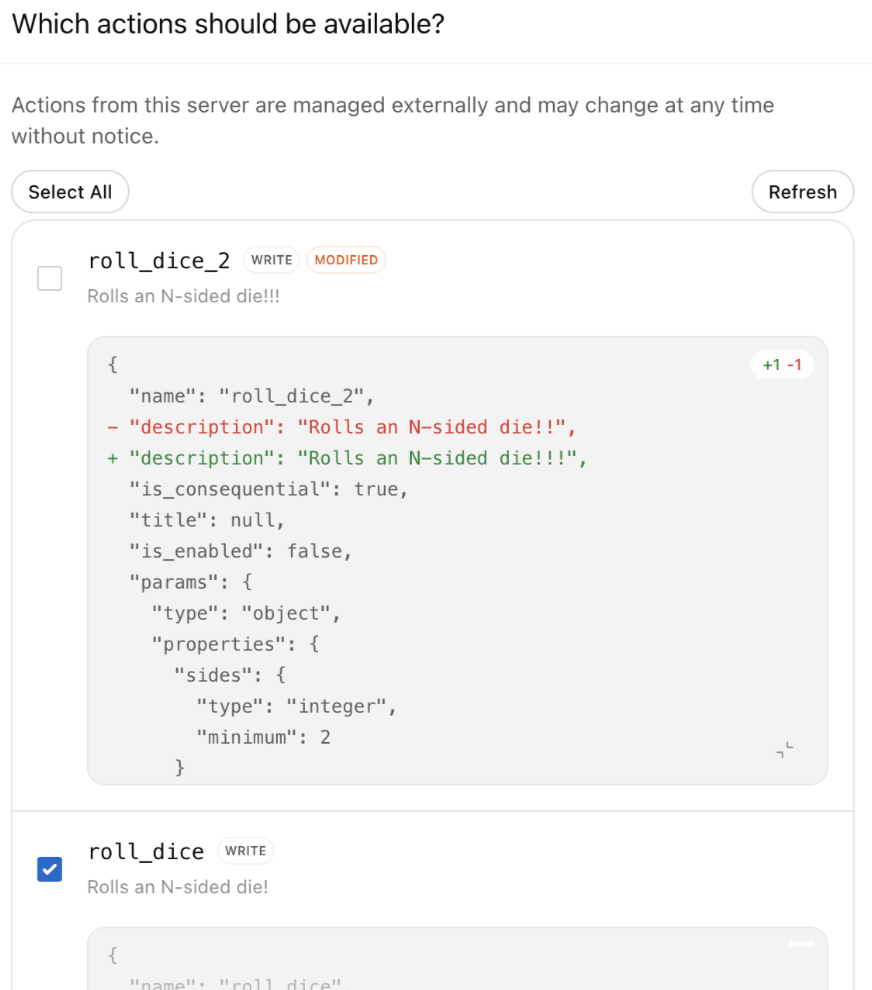
Run Test connection before you save. Saving adds the server even when ZeroTwo cannot reach it, and a server that failed to connect then shows up as needing attention.
Desktop-only options
In the desktop app, choosing STDIO swaps the URL fields for Command to launch, Arguments, Environment variables, Environment variable passthrough and Working directory. Local servers are listed on the MCPs tab of Settings > Plugins. OAuth 2.0 is not offered for private addresses.
Manage your server
- A server you add to your account is listed in Customize > Connectors, and its page is marked Custom.
- New tools start as Always allow. Review them, and set anything that changes data to Needs approval or Blocked. See Control what ZeroTwo can do in a connected app.
- To edit a server, open its page, select More options and choose Edit. The form is titled "Update" followed by the server's name, and secret fields stay as they are if you leave them blank. Remove deletes the server.
- If you change the tools your server offers, choose Refresh tools from the same menu.
Only add servers you trust.
How MCP Apps appear in chat
Some tools return an interactive widget instead of plain text. When a tool from a connected server declares a widget, ZeroTwo fetches the widget's HTML from that server and displays it in the chat. This works for servers you add yourself as well as for catalog connectors.
- Widgets run in a sandboxed frame and can be shown inline or in full screen.
- A widget can ask its server to run tools. ZeroTwo refuses tools the server did not make available to widgets, and any tool you set to Blocked stays blocked.
- For builders: ZeroTwo reads the widget from the tool's metadata. It supports the MCP Apps extension, where
_meta.ui.resourceUripoints to aui://resource, and it also accepts the widget metadata and script bridge used by other assistants' app SDKs.
On iOS and Android
The ZeroTwo apps for iOS and Android also offer Add MCP server in Customize.