
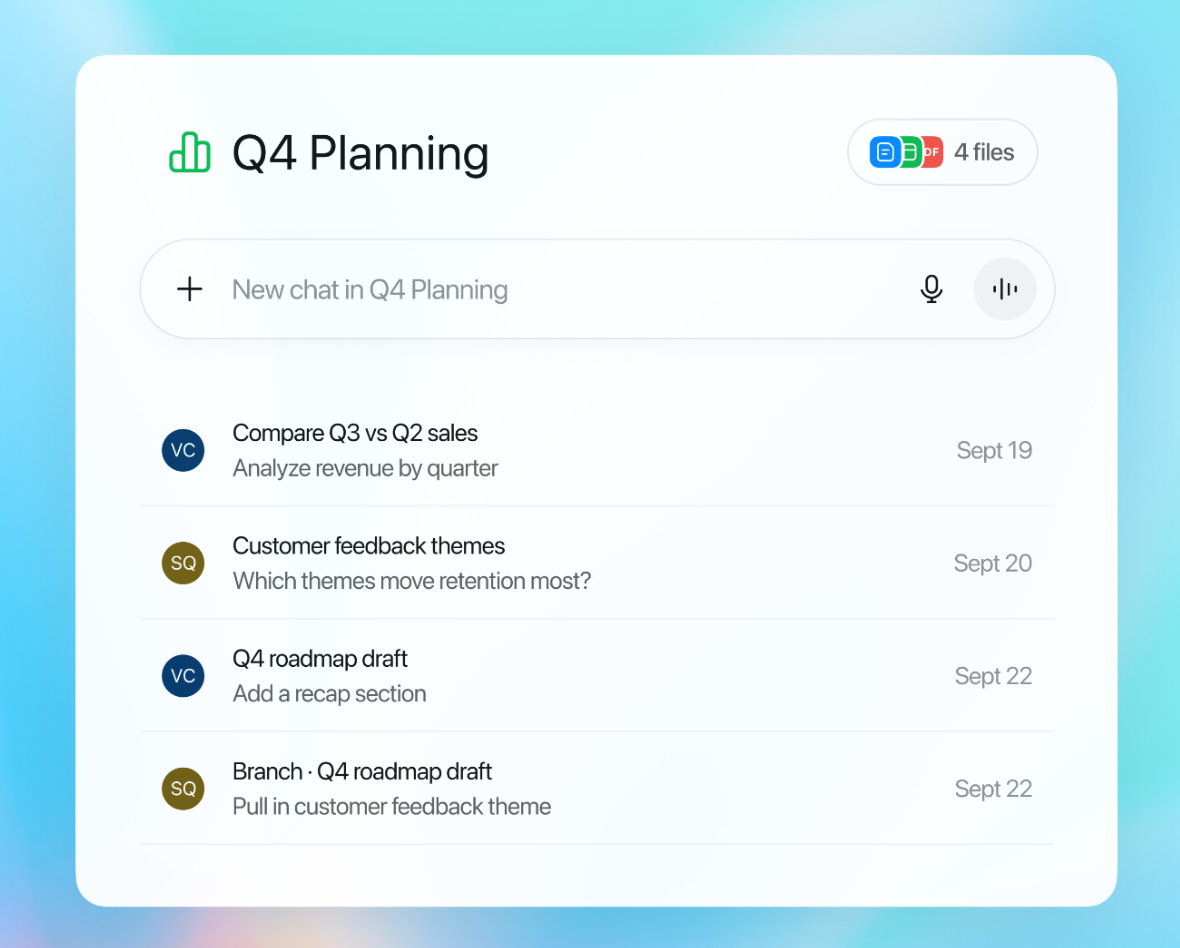
A project keeps related chats, sources and instructions in one place. Use one for ongoing work, such as a client, a course or a research topic, so ZeroTwo has the same context every time you start a new chat there. You can also share a project with other people.
Create a project
- In Chat mode, find the Projects section in the sidebar and click New project.
- Type a name. To change the icon, color or image, click the icon at the left of the name box.
- Click Create Project. ZeroTwo opens the new project.
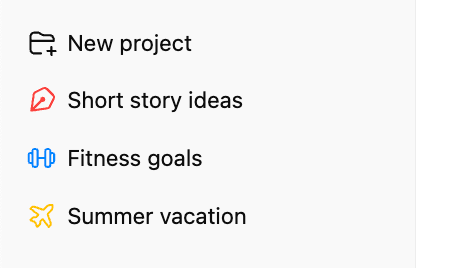
On the Free plan, New project in the sidebar opens an upgrade prompt. The ZeroTwo Pro and Pro 2× plan cards list "Unlimited projects"; the Plus card does not mention projects, and the app's project checks apply only to Free accounts.
In the desktop app's Work and Code modes, projects are folders on your computer, and New project opens a different setup window that takes source folders. The rest of this article is about the projects you create in Chat mode.
Set instructions and details
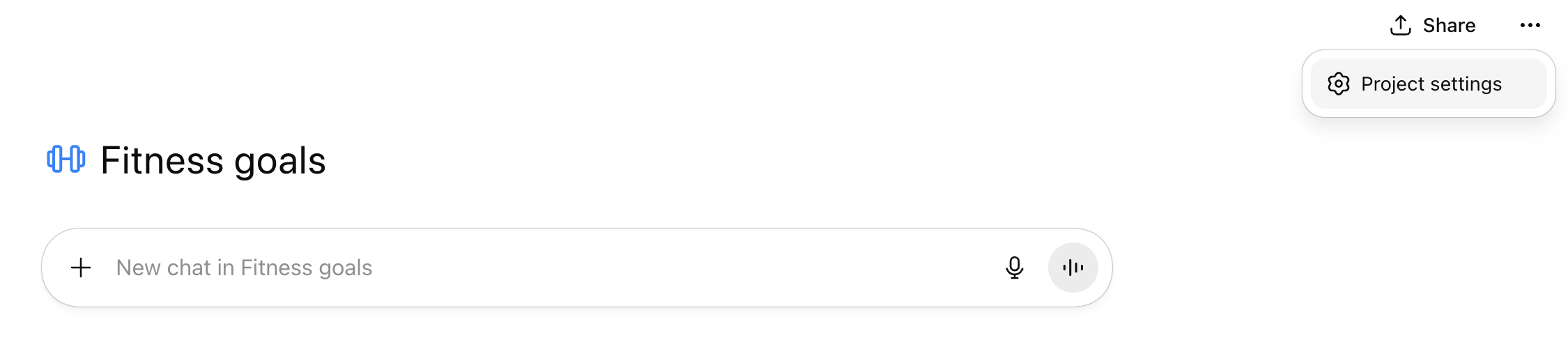
Open Project settings from the settings button at the top of the project, or from the project's menu in the sidebar. There you can change the name and icon and write Instructions: context and preferences ZeroTwo should follow in this project, such as the language to answer in or how short answers should be. Instructions can be up to 8,000 characters, and a counter shows how many you have used. Click Save when you are done.
Add sources
- Open the project and select the Sources tab.
- Click Add sources.
- Choose Upload, Text input, Library, Google Drive or URL Context. You can also drag files onto the page.
Each uploaded file can be up to 50 MB. You can sort the Sources list by Newest, Oldest, A–Z or Z–A, and filter it by All, Saves or Apps. Apps shows sources that came from Google Drive, Dropbox or OneDrive; Saves shows the rest.
Chat inside a project
On the project page, type in the box that starts with New chat in followed by the project name. Chats you start there are saved under the Chats tab. This box is only shown to people who can edit the project.
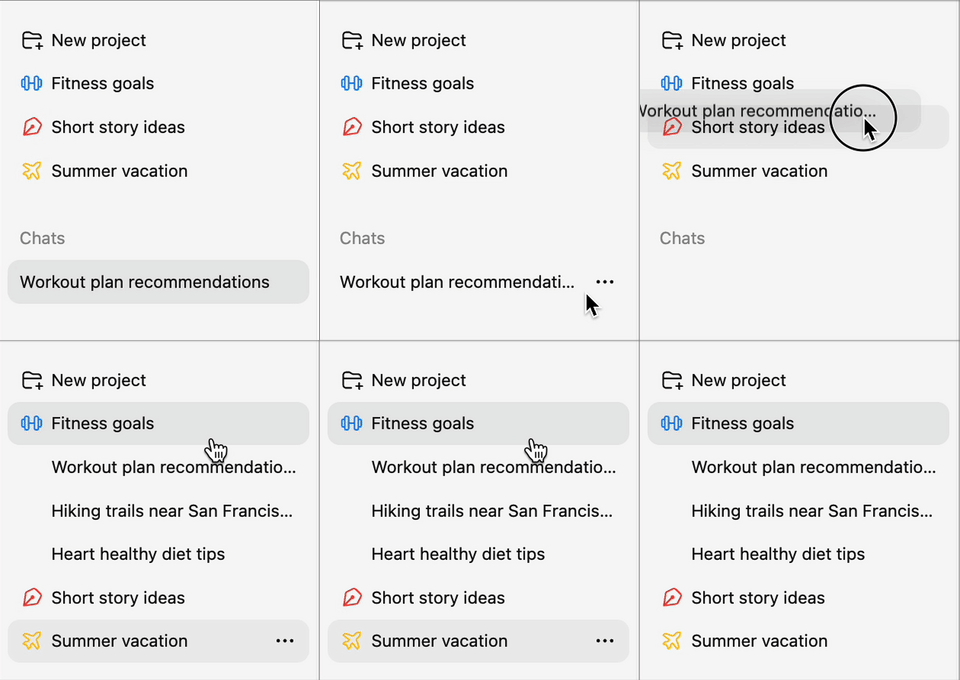
To put an existing chat into a project, open its menu in the sidebar and choose Move to project, then pick the project. You can also drag a chat from the sidebar onto a project. To take a chat out again, choose Remove from project from its menu in the project.
Share a project
Owners and admins see a Share button at the top of the project.
- Click Share.
- Under Add people by email, enter one or more addresses and choose a role from the menu beside the box.
- Click Invite.
| Role | What the dialog says it allows |
|---|---|
| Can view | Chat and view project content |
| Can edit | Edit files, chat, and manage content |
| Admin | Full project access, invite members |
Under Who has access, choose Only those invited or Anyone with a link. With a link, anyone who opens it sees "This is a public project. Anyone can join." and can click Join project. The dialog shows Copy link and buttons to share the link on LinkedIn, Reddit or X. It also lists current members, and the project owner can change a member's role or remove them there. Pending Invitations lists invitations that have not been accepted yet, and you can revoke them.
Before you share, remember that all project contents are visible to collaborators. The dialog warns that the project may include personal information.
When you receive an invitation, opening the link shows who invited you and the project name. Click Accept invitation to join. If you do not have access to a project, ZeroTwo shows "You don't have access to this project" and suggests contacting the owner.
Leave or delete a project
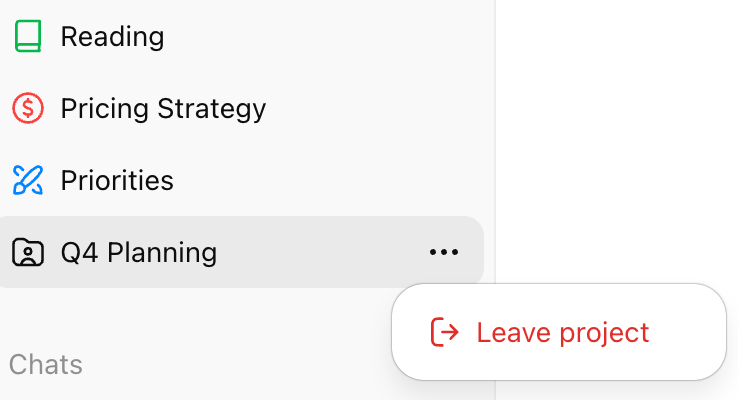
- Leave project is in the project's menu in the sidebar and in Project settings for anyone who is not the owner. ZeroTwo asks you to confirm because you lose access to all project content.
- Delete project is for the owner. The confirmation, "Delete project?", warns that it permanently deletes all project files and chats, so move any chats you want to keep to your chat list or another project first. You cannot delete your last project.
On your phone
ZeroTwo for iOS and ZeroTwo for Android can create projects, edit a project's instructions and share a project by email invitation or link.