
A scheduled task is a set of instructions that ZeroTwo carries out later or on repeat, such as a morning briefing or a weekly report. Each run shows up as a chat that you can open to read the result.
Create a task
Ask in a chat. Describe what you want and when, for example "Each day at 8am, send me a short AI news report" or "Remind me in 4 hours to do laundry". ZeroTwo can set up the task for you. If you ask to be told when something becomes true, it can create a watch that stays quiet until the condition is met.
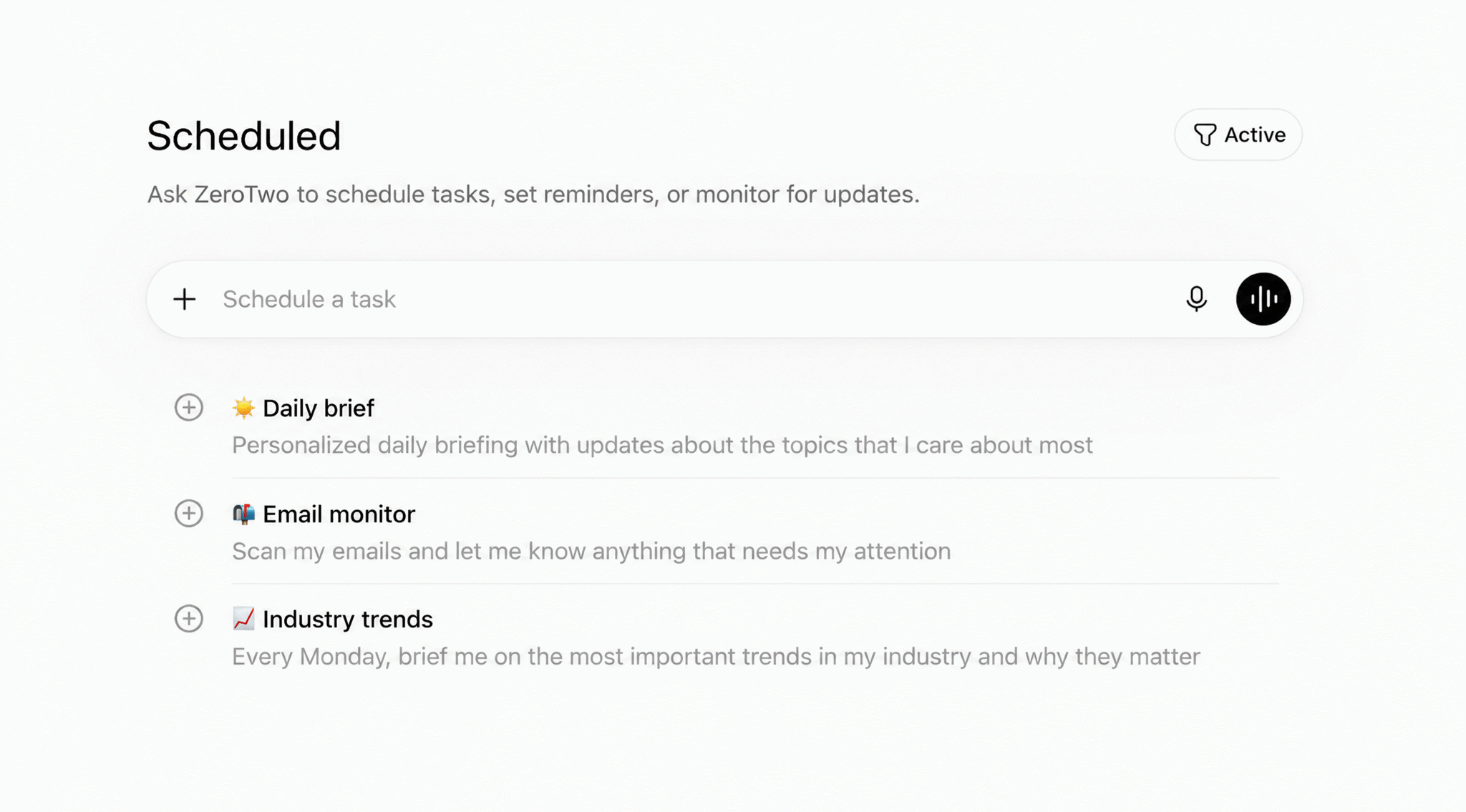
Use the Scheduled page.
- Click Scheduled in the left rail.
- Click New task and choose Create with ZeroTwo or Set up manually.
Create with ZeroTwo opens a new Work chat with a message already filled in but not sent. The message asks ZeroTwo to explain how scheduled tasks work and then to ask what you need scheduled and when. Set up manually opens the task editor. You can also click one of the suggestion cards on the Scheduled page, such as Morning briefing, News monitoring or Weekly workflow run. A card fills in the editor, and nothing is created until you click Create.
Fill in the editor
- Optionally give the task a name in the title field.
- In the box that says Describe what ZeroTwo should do, write the instructions as you would for a chat.
- Under Details, choose where and how it runs (see the table below).
- Under When, choose the timing.
- Click Create.
| Setting | Choices |
|---|---|
| Runs on | Local runs on your computer and is available only in the desktop app. Cloud runs in the cloud and keeps working when your computer is off. This row is not shown for tasks started by an event, which always run in the cloud. |
| Runs in | New chat starts a fresh chat for each run. Existing chat lets you choose one of your pinned chats, and each run posts into it. With Existing chat, the rows below are not shown. |
| Runs against (Cloud) | New chat or GitHub repository. For a repository, connect GitHub first. |
| Project (Local) | The project on your computer the task works in. |
| Model and Reasoning | The model for the task and how much reasoning it uses. |
Choose when it runs
Open the When menu to pick On a schedule or an event. For a schedule, Repeat offers:
- Doesn't repeat, with a date and time.
- Interval, every set number of minutes or hours.
- Daily, Weekly (with a day), Monthly (with a day of the month) or Annually (with a month and day), each at the time you choose in At.
An event can start a task instead of a clock. The event choices are Git event, Linear issue, Sentry alert, PagerDuty incident, Webhook and Firecrawl Monitor. Slack message and Teams message appear in the list but are not available. Gmail and finance triggers are not offered. You choose an event when you create a task: for a task that already exists, the event choices are greyed out with "New task only".
Manage your tasks
The Scheduled sidebar lists your tasks under Upcoming, with the next run and the schedule of each. Use the filter button to show All, Active or Paused tasks, or click the search button and type in Search tasks. A dot on the Scheduled icon in the rail means a run you have not opened yet; Mark all as read in the filter menu clears them.
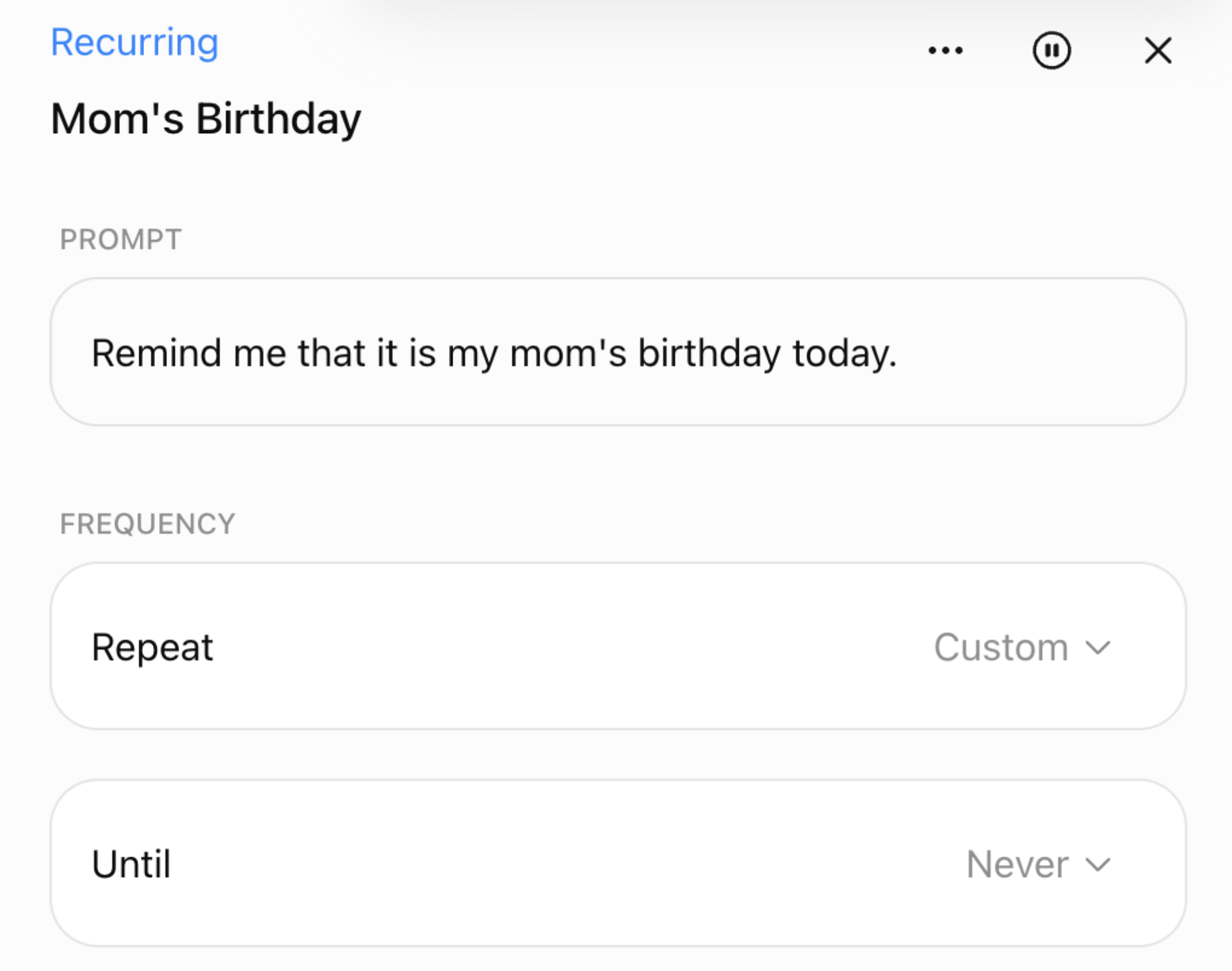
- Open a task to see its latest run. A task that has not run yet opens its details with a Run now button.
- Edit, Pause or Resume, Run now and Delete are in each task's menu. Delete asks you to confirm because it permanently deletes the task.
- When you edit an existing task, changes are saved automatically. The editor lists Previous runs and shows the task's status: Active, Paused, Failed or Completed.
Get notified
Go to Settings > Notifications and find Tasks, described as "Get notified when tasks you've created have updates." Choose from Mobile app push, Email, and in the desktop app Native desktop. The Manage tasks link under it opens the Scheduled page.

On your phone
ZeroTwo for iOS and ZeroTwo for Android show your scheduled tasks and let you open, edit, pause or resume, run and delete them.