
Memory is what ZeroTwo carries from one chat to the next: what you ask it to remember, what it learns from your chats on paid plans, and your recent chats. It is stored with your ZeroTwo account. These steps are for the web and desktop apps.
What ZeroTwo remembers
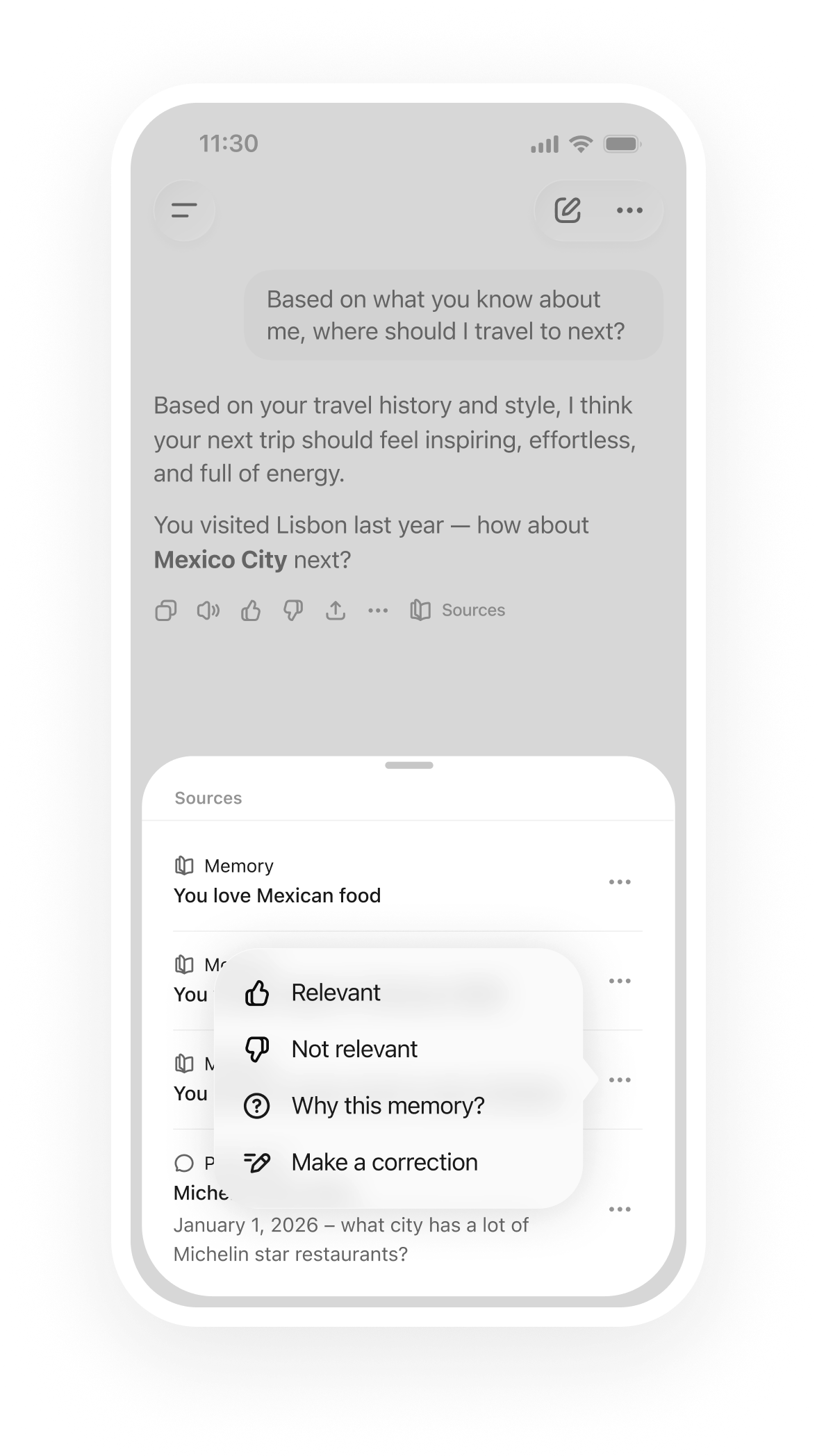
- What you ask it to save. Say something like "Remember that I prefer metric units" or "Forget my old job". A Memory updated button appears under the reply after a save. Select it to open your memory summary.
- What it learns from your chats. On Plus, Pro, Pro 2×, Ultra and Ultra 2×, ZeroTwo also keeps what is worth remembering as you chat. On the Free plan it does not learn from your chats.
- Your past chats. ZeroTwo can use them as context in new conversations.
ZeroTwo is set up not to save passwords, keys or other credentials, and not to save health, sexuality, religion, political views, criminal history or immigration status unless you ask it to. It also skips one-off requests and text you only asked it to translate, rewrite or summarize.
A side chat, a temporary chat, a locked chat and a scheduled task can use your memory, but they never save to it. A temporary chat set to Unpersonalized ignores your memory completely.
Turn memory on or off
- Open the account menu at the bottom of the sidebar and choose Settings.
- Choose Personalization. Memory is the first section, Web memory.
- Use the Enable memory switch.
This one switch covers the memory stored with your account. When it is off, nothing is used or learned, and nothing is deleted, so your saved memories are waiting if you turn it back on. If a parent has turned memory off for your account, the switch is locked and marked Managed by parent.
A second switch, Allow memories from tool-assisted chats, decides whether ZeroTwo learns from chats that used MCP tools or web search.
See and change what ZeroTwo knows
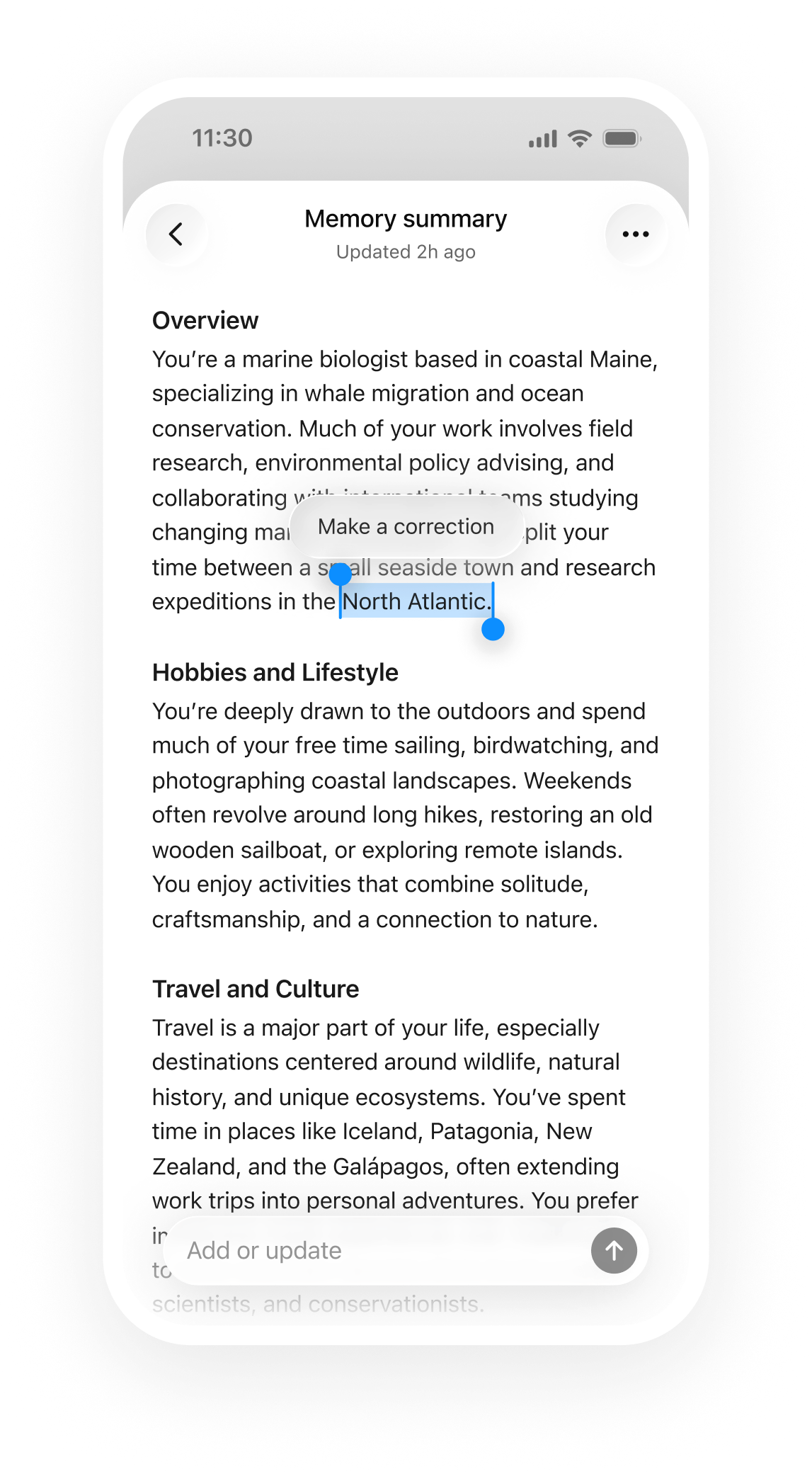
In the same section, find Memory summary and choose Manage. It opens a written account of what ZeroTwo remembers about you. The summary is rewritten when your memory changes.
The box at the bottom says Ask or update. Use it to ask what ZeroTwo knows, or to change it, for example "I moved to Denver" or "Forget my old job". Answers appear above the box, and changes show as a short notice. The box is unavailable while memory is off.
The Memory summary options menu (the three dots) has three items: About memory, Refresh summary and Delete and turn off memory.
Bring memories over from another AI
- In the Web memory section, find Import memory and choose Import.
- Copy the prompt into a chat with ChatGPT, Claude or Gemini. It asks that AI to list what it remembers about you in your own words, sorted into categories with a date on each entry.
- Paste its answer into the box and choose Import.
ZeroTwo saves each entry as a memory and lists what it imported. It skips entries you already have, entries you asked it to forget, and lines that look like a password, key or email address. One import saves up to 100 new memories. If more are left, paste the same list again to import the rest.
Delete everything ZeroTwo remembers
In the memory summary, choose Delete and turn off memory, then confirm with Delete and turn off. This deletes your saved memories and everything ZeroTwo learned from your chats, and turns web memory off. Your chats are kept.
Memory on your computer
Work and Code in the desktop app also keep a memory on your computer. In the desktop app, Personalization has a Desktop memory section below Web memory:
- Enable desktop memories creates memories from chats on this computer and uses them in future chats on this computer.
- Delete desktop memories deletes everything ZeroTwo saved on this computer. Your web memory and your chats are kept.
In Work and Code you can type /memory to open memory settings. The memory summary opened from a desktop task covers the memory on your computer, and notes that have not been merged in yet are listed under Waiting to be added to your memory.
Good to know
- Code and Deep Research runs do not use the memory stored with your account.
- The iPhone, iPad and Android apps have their own Memory page in Settings, with a memory switch, the tool-assisted chats switch and Saved memories.