
On the ZeroTwo web app, the desktop app and the iPhone, iPad and Android apps, signing in with a phone number takes three steps: choose phone, enter your number, then enter the six-digit code that ZeroTwo texts to you. Here is what each step looks like.
1. Choose Continue with phone
On the sign-in page, under "Log in or sign up", the fourth button below Google, Apple and Microsoft is Continue with phone. Selecting it replaces the email box with phone fields, and the button turns into Continue with email so you can switch back.
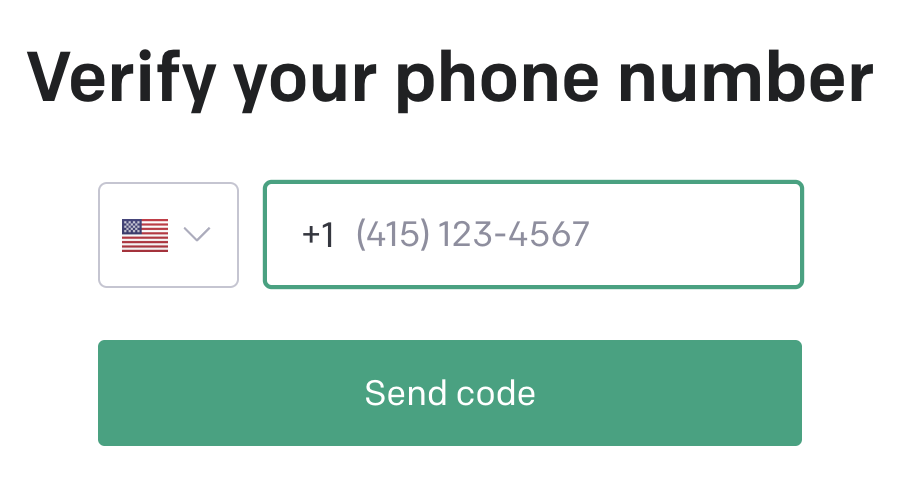
2. Enter your number
- Web and desktop app. Pick a Country from the menu, which shows a flag, the country name and its dialing code and starts on United States +1. Then type your number in Phone number, digits only. A +1 number needs exactly 10 digits; for any other country, the country code and number together must be 7 to 15 digits. Continue stays disabled until the number is long enough, and a CAPTCHA may need to be completed first (see When does ZeroTwo ask me to complete a CAPTCHA?).
- iPhone and iPad. There is no country menu. The code is fixed at +1, so you enter a 10-digit number.
- Android. The country code is a text box that starts at +1, beside a box for the number with the example "(555) 123-4567".
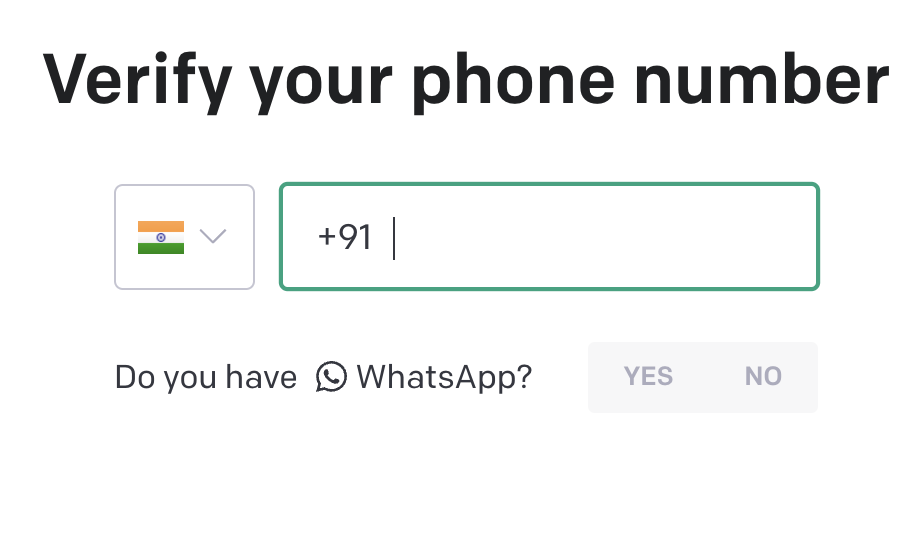
Select Continue. ZeroTwo sends the code by text message. There is no option to receive it on WhatsApp.
3. Enter the code
- Web, desktop app, iPhone and iPad. The screen is titled "Check your phone" and says "We've sent a 6-digit code to" followed by your number. Type the code into Verification code; the screen notes "Enter the 6-digit code from the SMS. The code expires in 60 seconds." The buttons are Verify, Resend code (which counts down as "Resend in" a number of seconds) and Use a different phone number. On the web and in the desktop app, Resend code also needs a fresh CAPTCHA check.
- Android. The screen is titled "Enter verification code" and also says it sent a 6-digit code to your number. Verify turns on once you have typed six digits. Use a different number goes back, and Resend code reads "Try again in" a number of seconds while you wait.
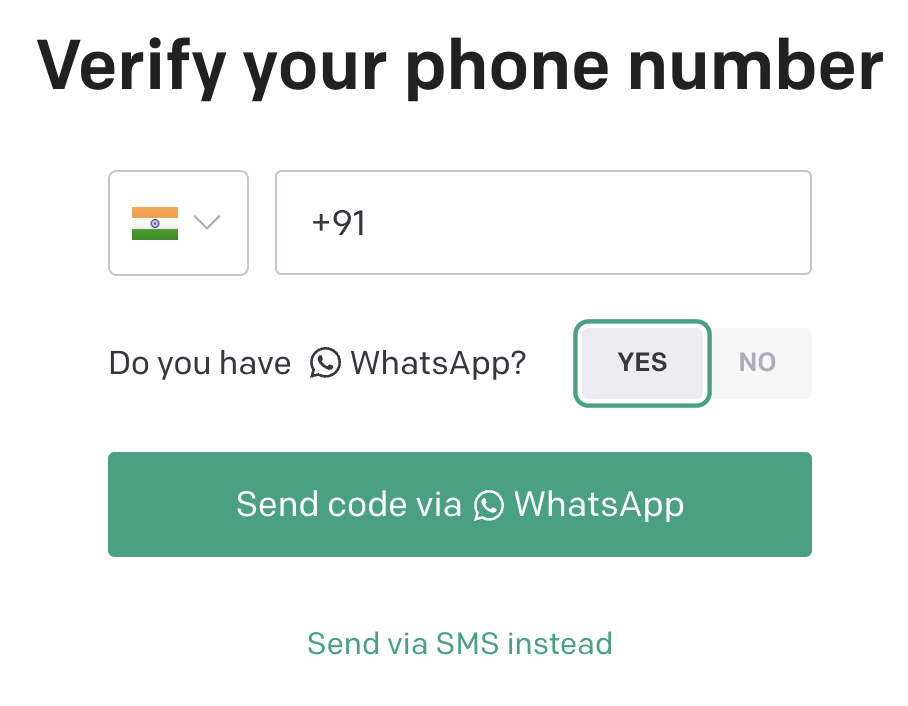
On the web, in the desktop app and on iPhone and iPad, the screen adds that a new account is created automatically when you verify.
If the text cannot be sent
- "Check your country code and phone number, then try again." means the number was rejected. The iPhone app words it as "Check your phone number and country code, then try again."
- "SMS sign-in is not available for this destination. Use email or another sign-in method." means texts cannot be sent to that country or region. See Why does ZeroTwo say SMS sign-in is not available for my number?.
- "Couldn't send your verification code. Check the number and try again." is the web page's message when the text provider reports a failure to send.
- After you request a code, wait before asking for another. On the web and in the desktop app the wait is 60 seconds and the page says "Please wait a moment before requesting another code." The apps show a countdown on the buttons.