
You can give ZeroTwo a data file and ask about it in plain language. ZeroTwo can run Python code on the file and then show you the results, charts, and files that the code produces.
Attach your data
- In the message box, select the + button and choose Files and folders.
- Pick your file. ZeroTwo accepts CSV, TSV, XLS, XLSX, and ODS spreadsheets, along with many other file types.
- Ask your question in the same message, for example: "Summarize this file: columns, data types, and missing values."
The more precisely you describe what each column holds and what you want back, the less ZeroTwo has to guess. Name the output you want, such as a line chart saved as a PNG or an .xlsx with a new column.
How the analysis runs
ZeroTwo decides when code is worth running. A quick calculation it can answer directly may not need it. When it does run Python in a Chat conversation, a collapsible step reads Analyzing while the code works and Analyzed when it finishes. In Work mode the step reads Running Python and then Ran Python.
- The code runs in a cloud sandbox that has pandas, NumPy, Matplotlib, seaborn, SciPy, scikit-learn, and openpyxl ready to use. In the desktop app, a Work conversation that is working on a folder on your computer can run its scripts on your own machine instead.
- Files you attach to the current message are already in the sandbox when the code starts. ZeroTwo can also reload a file you attached in an earlier message by its file name.
- In Chat, a Python run is limited to five minutes.
- Select the step to read the code and its output. In Chat, files the code created are listed under Generated Files with a Download link, and charts it saves come back as images or files in the reply. In Work mode, the step lists the generated files.
To check a result, ask ZeroTwo to show the rows or formula behind a number, or open the step and read the code. For the full list of data formats and the file limits, see Analyzing spreadsheets and data files with ZeroTwo.
Open a spreadsheet in the viewer
When you open an XLSX, XLS, CSV, or TSV file from a chat, it opens in the file viewer panel. The viewer is read-only. It has a grid, a formula bar that shows the selected cell's address and contents, sheet tabs along the bottom, and a zoom menu from 50% to 200%.
Ask about selected cells in the desktop app
In the desktop app, a spreadsheet that lives on your computer has an extra button in the viewer toolbar that lets you point at cells and comment on them.
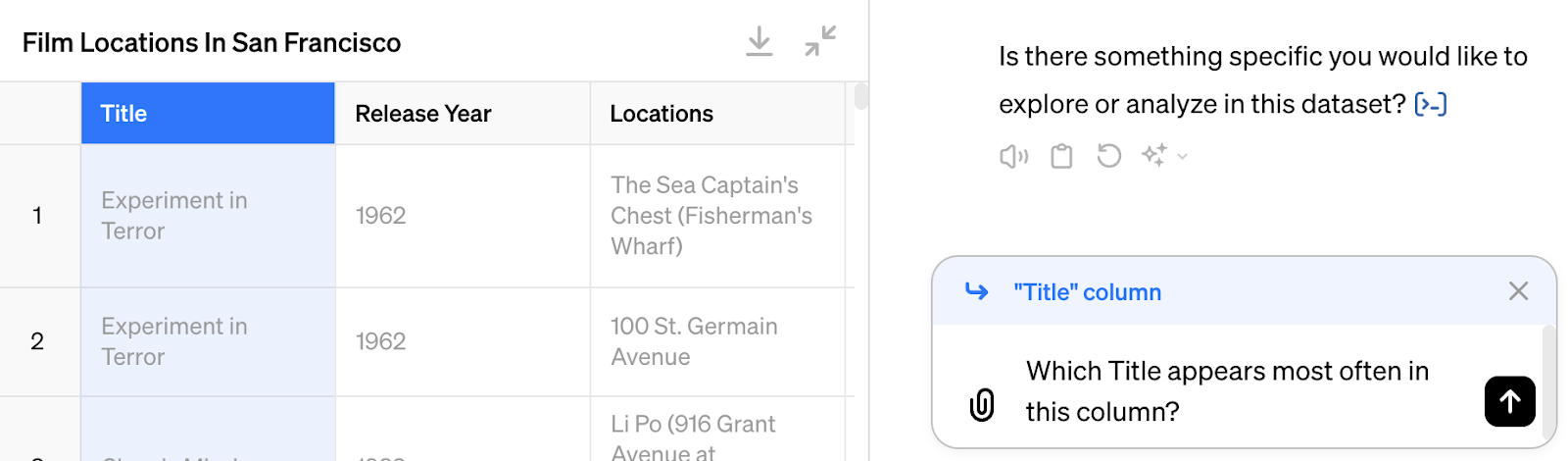
- Select the Annotate button in the viewer toolbar, a speech bubble with a plus sign. An Annotating label appears while the mode is on.
- Click a cell, or drag across a range. A numbered pin marks your selection and a box with "Add a comment…" opens beneath it.
- Type what you want, for example "Fix this formula", and press Enter or select the send button.
ZeroTwo sends your text as a message in the active chat. It also passes along the sheet name and the cell reference, such as B2:B20, so the request points at the right place. By default ZeroTwo records your note as a native Excel cell comment; if your text is an instruction to change the cell, such as "Fix this formula", it makes that edit in the file instead. For a file on your computer, it works on the file where it is. Press Escape or click elsewhere to close the box without sending.
The Annotate button is for files on your computer. Spreadsheets you open from a chat in the web app show the grid without it.