
The ZeroTwo desktop app for Windows is a separate app, not a browser tab. It signs in to the same account as the web app, so your chats come with you. This article covers installing it, signing in, the shortcuts and settings that matter on Windows, and how updates work.
Download and install
- Go to zerotwo.ai/download. In the web app, the Get apps button in the sidebar footer also has a Get Desktop App option.
- Under Download ZeroTwo for desktop, open the Windows menu and choose Installer · x64 (runs on ARM via emulation). The file is named
ZeroTwo-Windows-Setup.exe. It is an x64 installer, and it also runs on Windows on ARM through emulation. There is no separate ARM build. - Run the installer and follow the steps. It is a step-by-step installer, not a one-click install, and it lets you choose the install folder.
If Windows shows Windows protected your PC, ZeroTwo's download page says that is SmartScreen's reputation check on a newly released build, not a problem with the file. Select More info and confirm the publisher reads ZeroTwo Innovations Inc., then choose Run anyway. If the publisher shows anything else, do not run it.
Sign in
Use the same sign-in method as on the web. If you sign in with a provider such as Google, ZeroTwo opens your default browser to finish and then brings you back to the app. If sign-in fails, see Why can't I log in to ZeroTwo?
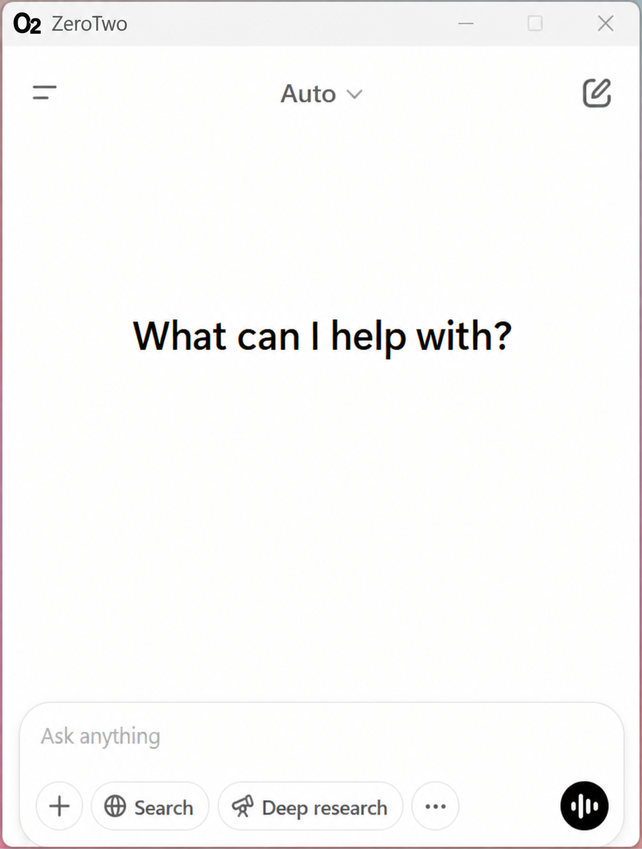
Start a chat
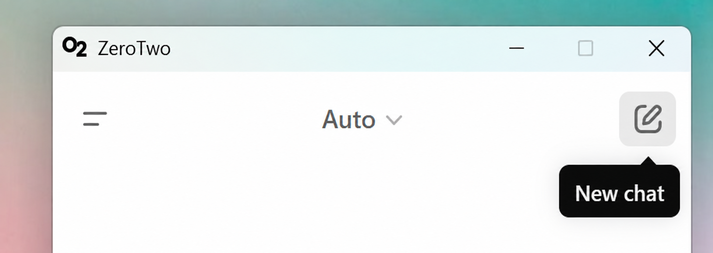
- Choose New chat in the sidebar, or press Shift+Ctrl+O.
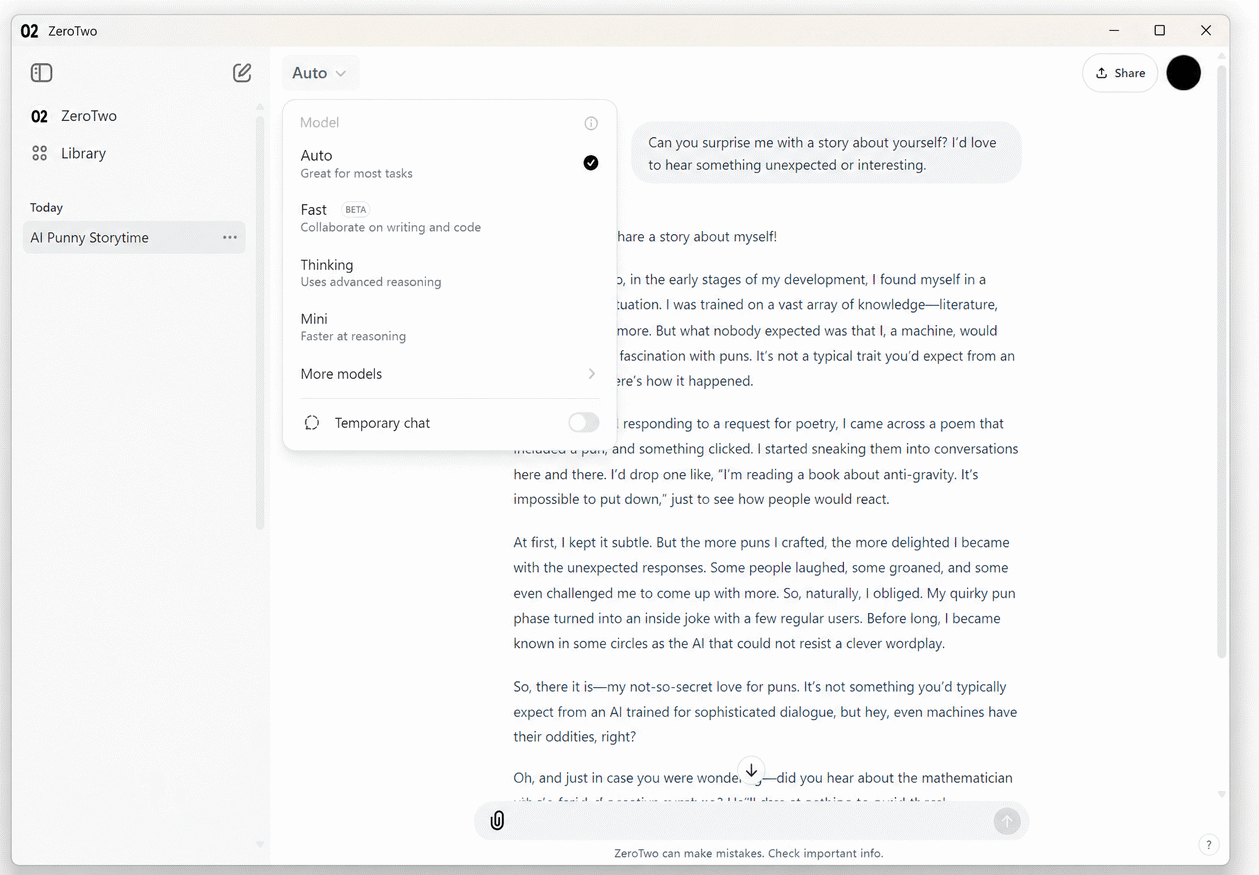
- Type in the message box. The model picker is in the controls of the message box.
Keyboard shortcuts on Windows
On Windows the shortcuts use Ctrl where a Mac uses Command. These are the defaults. Open Keyboard shortcuts from the question-mark help menu at the bottom of the sidebar, or go to Settings > Shortcuts, to see them all and change them.
| Action | Shortcut |
|---|---|
| Open new chat | Shift+Ctrl+O |
| Search chats | Ctrl+K |
| Toggle sidebar | Shift+Ctrl+S |
| Settings | Ctrl+, |
| New window | Shift+Ctrl+N |
| Show shortcuts | Ctrl+/ |
| Add photos & files | Ctrl+U |
| Toggle voice | Ctrl+Shift+V |
| Toggle dictation | Ctrl+Shift+D |
Open ZeroTwo from anywhere
Open Settings > General to find the desktop options:
- Quick access shortcut lets you message ZeroTwo from anywhere on your desktop. It brings the ZeroTwo window to the front. The default is Ctrl+Shift+Z, and the other choices are Control+Space, Ctrl+Shift+Space or no shortcut.
- Run on startup starts ZeroTwo when you log in to your computer.
- Show in system tray keeps ZeroTwo in the system tray when the main window is closed.
Settings > Mini & Pets has Show mini and Hide mini, which show or hide a small floating ZeroTwo window: a pet you choose, or just a dock. Hover over it for buttons to start a new chat, start a voice chat and, when there is activity to see, open notifications. The account menu has Show pet or Hide pet for the same thing.
What the desktop app adds
- A built-in browser. Press Ctrl+T to open a browser tab. See How do I use the built-in browser in the ZeroTwo desktop app?
- Dictation hotkeys under Settings > Voice that work from anywhere on your desktop. See Voice dictation in ZeroTwo: your questions answered.
- Computer Use, which is available on Windows as well as macOS.
- PowerShell as the default shell when the agent runs commands on Windows.
The window uses ZeroTwo's top bar as its title bar, with the usual minimize, maximize and close buttons in the corner.
Keep it up to date
If you installed ZeroTwo with the installer from zerotwo.ai, the app checks for an update every 15 minutes while it is open. When a new version is available, a round download button appears in the sidebar footer. Select it to download the update; it shows the percentage while it downloads. When the download finishes, the button's tooltip reads Restart to install. Select it to restart ZeroTwo on the new version.
To check by hand, open Settings > General, scroll to About and choose Check for updates. The Version row there shows which release you have. For what changed in each release, see What changed in ZeroTwo for Windows: release notes.