
Work is the mode to choose when a request takes several steps: research a topic and write it up, fill in a file, or move through a website. Work is ZeroTwo's agent mode: it breaks the task into steps, uses tools as it goes, and keeps you posted while it runs.
Start a Work task
- Open a new chat and choose Work in the Mode tabs at the top. The tabs only appear on a new, empty chat, because the mode is chosen before the first message.
- Describe the outcome you want. Include any files you need it to use with + then Files and folders, or Add from library for something already saved.
- Send the message and follow the run in the chat.
If the model you had selected cannot use Work's tools, ZeroTwo switches to a suitable default when you choose Work. Otherwise it keeps your model. Work is also a tab in the iPhone, iPad and Android apps.
Give it apps and tools
Connect the apps you want Work to use under Customize > Connectors. Work is set up to use the tools of apps you have connected. If a task needs an app that is not connected, it can offer to install the matching plugin or connector.
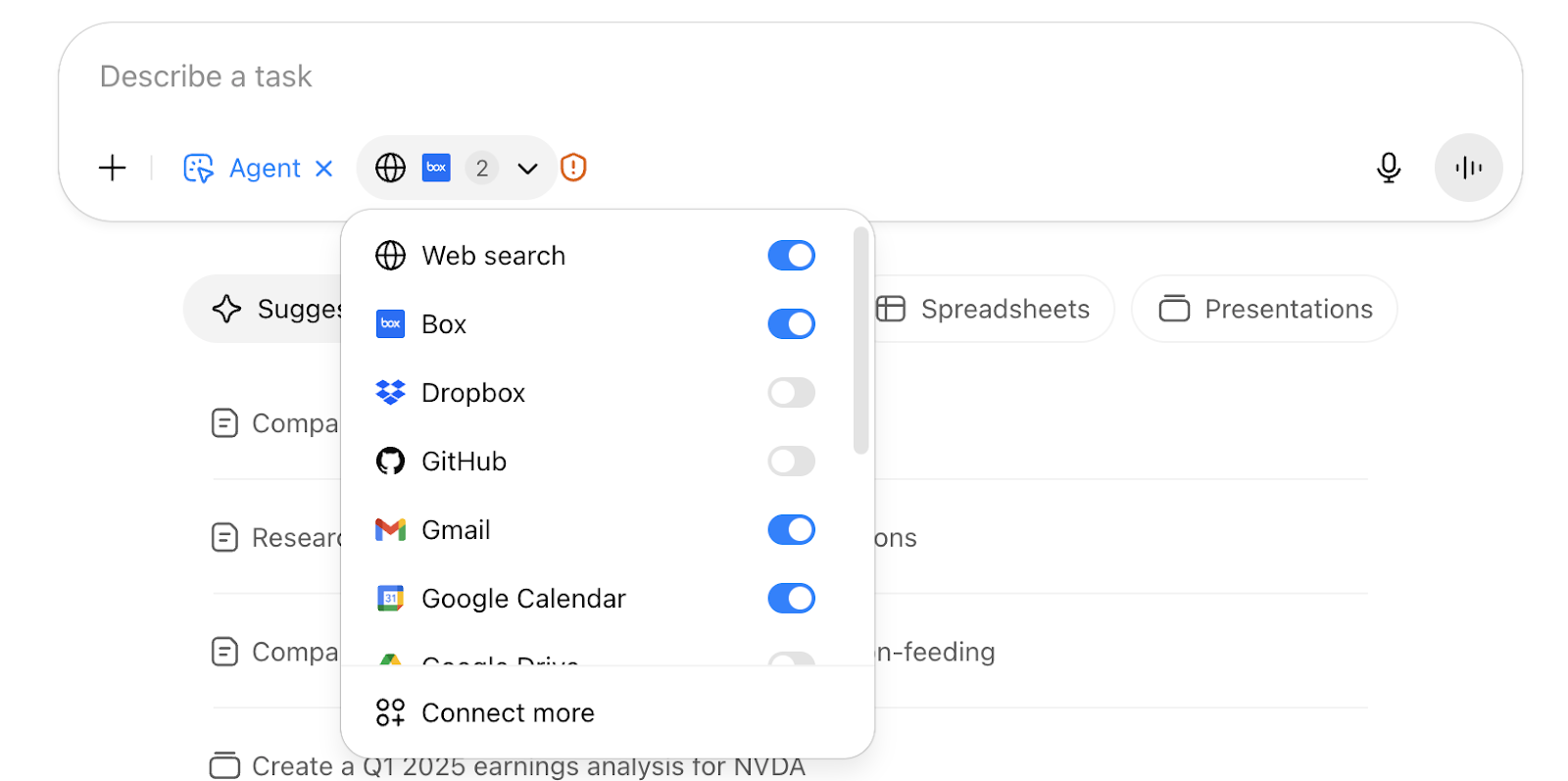
The + menu in a Work chat also lists the Plugins and Skills you have installed. On the desktop app it lists Commands as well. For files such as Word documents or spreadsheets, see Making Word, Excel, PowerPoint and PDF files with Work.
Watch and steer a run
- Progress. Work is instructed to post short updates while it uses tools and, for multi-step jobs, to keep a checklist that ends with a verification step. Open the side panel to see sections such as Plan, Outputs and Sources.
- Questions. Work is instructed to make reasonable assumptions and keep going, and to ask only when your answer would change the result. Approval and connector requests appear above the message box.
- Change course. Send another message while it works. The button reads Steer current run or Queue message, depending on the Follow-up behavior setting in Settings > General (Queue or Steer). Work is told to fold a message you send during a run into the current task unless it clearly replaces it.
- Stop. With an empty message box, the send button becomes Stop while a run is in progress.
The cloud browser
When Work runs from the web app or the mobile apps, it can use a private cloud browser on eligible accounts to open pages, click, type and take screenshots. Your site sign-ins in that browser are kept between tasks, so a site you signed in to earlier is often still signed in.
- The side panel shows a Cloud browser section with a preview while the browser is in use. Select the preview to open the live view.
- While the view is live, choose Take control to use the browser yourself, for example to sign in, and Release control when you are done.
- Open Cloud browser options and choose Reset browser data to clear saved site data. You are asked to confirm, and a fresh profile is created the next time.
The cloud browser is available on the Pro, Pro 2×, Ultra, Ultra 2× and Business plans. On an account without access, it reports that cloud browser access is not available.
Plans and credits
Work runs are metered in credits, with no separate daily run cap. The plan cards for Plus, Pro and Ultra list "Access to Work agent". Free accounts can open Work too, but on Free the run uses Auto or a free-tier model unless you have bought credits. The Ultra card also lists "Keeps working in the cloud when your computer goes offline". See What does the ZeroTwo Free plan include? for Free plan details.