
Archiving a Code or Work chat takes it out of your sidebar and keeps it, so you can bring it back. Deleting removes it for good. Where you manage archived chats depends on the app: the desktop app has an Archived tasks page, and the web app has an Archived chats list. For ordinary chats, see How do I archive or delete chats in ZeroTwo?
Archive a chat
- Hover over the chat in the sidebar, select Options and choose Archive. You can also open the chat, select More options in the top bar and choose Archive.
- An "Archived chat" notice appears with View and Undo buttons. Undo restores the chat. View opens your archived chats.
You can only archive chats you own. If the chat still has active work, ZeroTwo asks "Stop and archive chat?". Active work and its child agents stop, and queued work stays paused, including after you restore the chat. Choose Stop and archive to continue.
Archived tasks in the desktop app
In the desktop app, archiving a chat saves it as a local archive on your computer and then removes the chat from your account, so it no longer appears in the web app. To see your archives, open Settings and choose Archived tasks, or open Data Controls and select Manage beside Archived chats.
The page lists two kinds of archived tasks. Local tasks were archived in this app and are stored on this computer. Cloud tasks are archived chats stored in your account, marked with a cloud icon, for example ones you archived on the web. Use the controls above the list to narrow it:
- Type in the Search archived tasks box.
- Choose All tasks, Local or Cloud, and sort by Updated, Created or Alphabetical.
- Choose a project, or All projects.
With All projects selected, tasks are grouped by project or folder, and tasks created by a schedule are grouped as Scheduled tasks. Select Unarchive beside a task to bring it back. ZeroTwo confirms with "Task restored" and a View now button. If the task's project no longer exists, it says "Task restored without its project".
Delete archived tasks for good
On the Archived tasks page, only local archives can be deleted.
- Select the trash button beside a local task.
- In the "Delete archived task?" box, which says the task will be permanently deleted and that this cannot be undone, select Delete. ZeroTwo shows "Archived task deleted".

To delete every local archive in one project or folder, select the ... menu on its heading and choose Delete local archives. To delete all of them, select Delete all at the top of the page. It appears only while you have local archives, and its box reads "Delete all local archived tasks?".
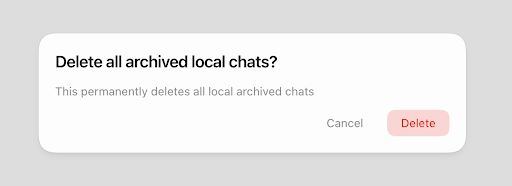
These deletions do not touch cloud archives. A cloud task has no trash button on this page. To delete one, unarchive it and delete it from the sidebar, or delete it from the Archived chats list in the web app.
Archived chats on the web
- Open Settings > Data Controls.
- Next to Archived chats, select Manage. The Archived chats dialog opens.
- Select Restore to return a chat to its original location, or select the trash button and choose Delete permanently in the "Permanently delete this chat?" box.
Delete a chat without archiving it
In the sidebar, select Options on a Work or Code chat and choose Permanently delete. In the "Delete chat?" box, select Delete. The box says the chat and its messages will be permanently deleted and that this action cannot be undone.