
ZeroTwo gives you two ways to clear a chat out of your sidebar. Archiving hides the chat but keeps it, so you can bring it back later. Deleting removes the chat and its messages for good.
Archive a chat
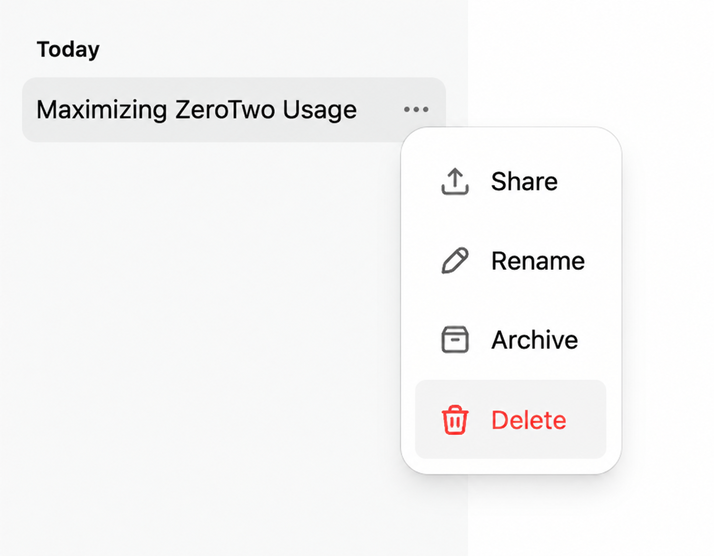
- Hover over the chat in the sidebar and select its Options button. You can also open the chat and select More options in the top bar.
- Choose Archive.
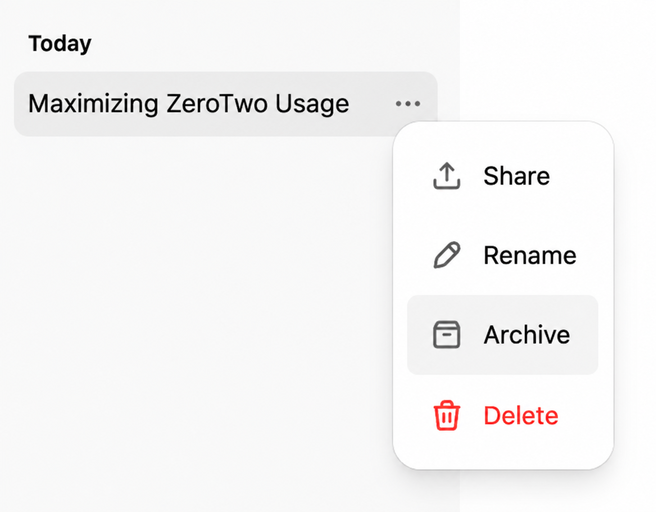
An "Archived chat" notice appears at the top of the window for a few seconds with View and Undo buttons. Undo restores the chat and opens it. View takes you to your archived chats.
On the web and desktop apps you can only archive chats you own. If the chat still has active work, ZeroTwo asks you to confirm with "Stop and archive chat?" because the work and its child agents stop. On iOS and Android, a chat's options menu has the same Archive and Delete entries.
Archived chats disappear from the sidebar, from the recent chats list, and from the results in the search dialog.
Find and restore archived chats
- Open Settings and go to Data Controls.
- Next to Archived chats, select Manage.
- Find the chat in the list. Each row shows the title and when it was archived.
- Select Restore to return the chat to its original location.

In the desktop app, Manage opens the Archived tasks page instead. On iOS and Android, Archived chats is in the Data controls settings and lists your archived chats with a Restore button.
Delete a chat
- Hover over the chat in the sidebar and select Options.
- Choose Delete. For chats started in Work or Code mode, the same entry is named Permanently delete.
- In the "Delete chat?" box, select Delete.
The box warns that the chat and its messages are permanently deleted and that this action cannot be undone. The top-bar menu has no delete entry, so delete from the sidebar or from the Archived chats list.
To delete a chat you already archived, open the Archived chats list, select the trash button beside it, and confirm with Delete permanently.
Delete all chats at once
- Open Settings and go to Data Controls.
- Select Delete all chats, then confirm with Yes, delete all chats.
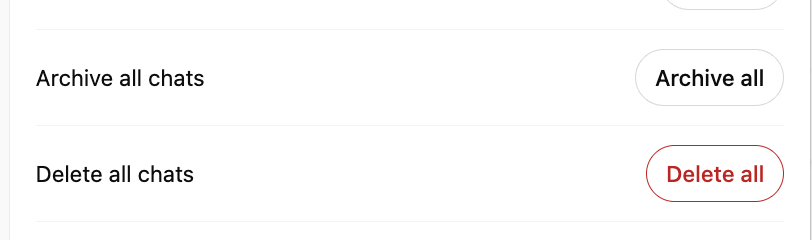
This removes only your conversations. Your assistants, projects, files, and other data stay in place. The Clear all data row goes further and also removes projects, files, scheduled tasks, and integrations.
Data Controls has no setting that archives every chat at once. In Work or Code mode, if you have organized your chats into custom sidebar sections, a section's options menu has Archive all chats, which archives the chats in that section.
For the rest of the page, including exports and shared links, see Manage your chats and account data in Data Controls.