
Overview
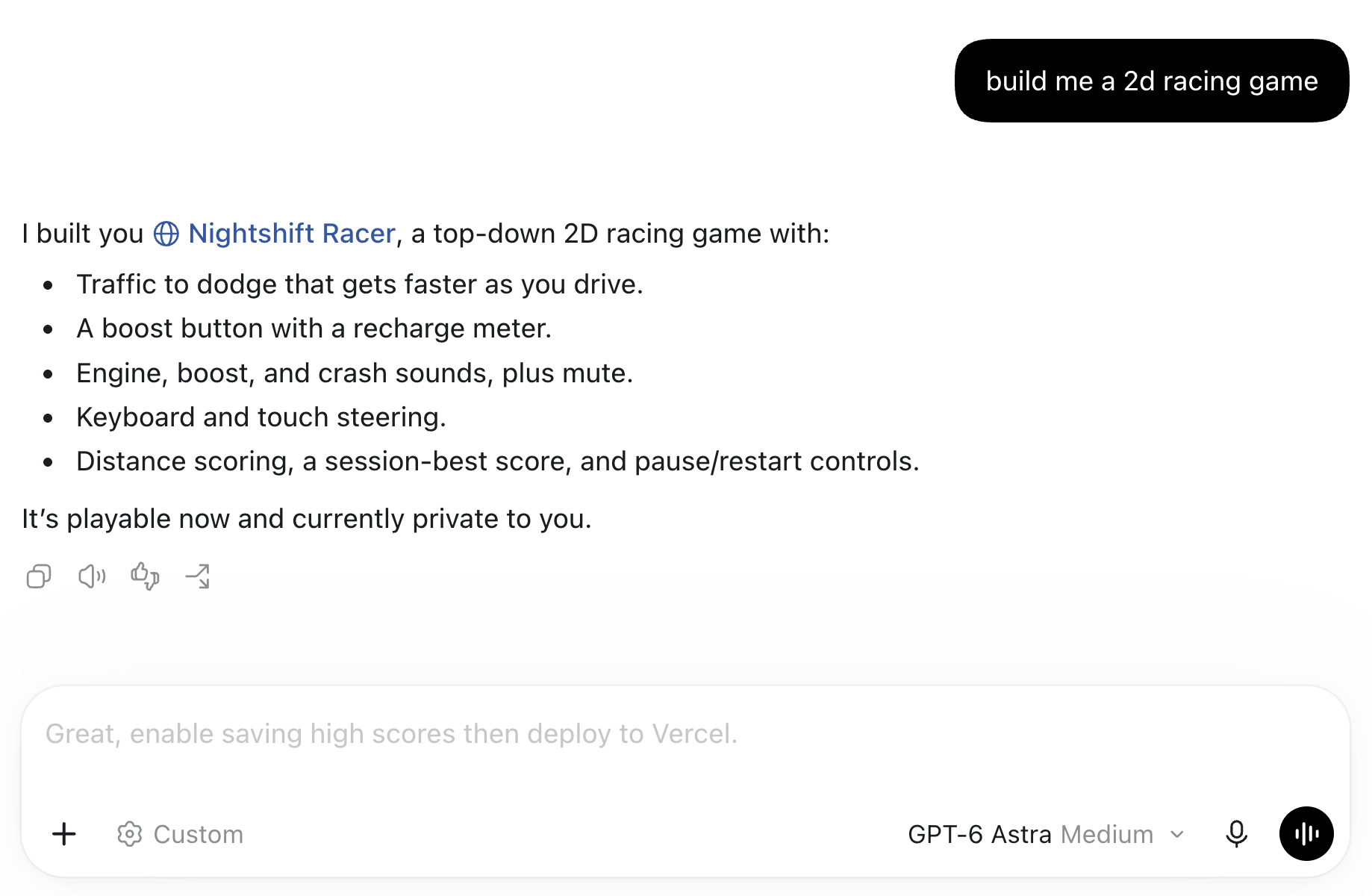
ZeroTwo can suggest a follow-up in the empty message box after an assistant response. The suggestion draws on your conversation and is intended to help with an unfinished task. When there is no clear next step, the box may stay empty.
You decide what to send. A prediction is optional, and you can change its wording or ignore it.
Availability
Predictions use ZeroTwo's shared composer in the web and desktop apps, including Chat, Work and Code conversations. Sign in and enable Show predictions. The setting starts on by default.
You do not need to select GPT-6 Astra or GPT-6.1 Sol to get a prediction. ZeroTwo generates suggestions separately from the model you chose for the conversation.
Use a prediction
- Send a message in an existing conversation and let the response finish.
- With the message box empty, look for a suggested follow-up.
- Press Tab to put it in your draft. Read it, make any changes, and send when ready.
Press Escape to dismiss a suggestion, or start writing your own draft. Predictions suggest a whole message; they do not complete a sentence while you type. Tab acceptance only fills the draft.
Turn predictions off
Open Settings → General. In the Composer section, switch off Show predictions. Turn the same switch on to restore suggestions.

What context is used?
The prediction request uses recent user and assistant text from the current conversation. It does not independently search memories or connected apps. Information from those sources can still influence a suggestion if it is already in the conversation. Turning memory on is not a requirement.
For account privacy settings, see Data Controls.
If no prediction appears
- Check that you are signed in and Show predictions is enabled.
- Wait for active work to finish and leave the message box empty.
- Close composer menus and finish voice or dictation input. Predictions are hidden while those controls are active, while editing queued messages, in Images mode, and when files are attached.
A completed task, an unclear next step, a service error or a daily request limit can leave you without a suggestion. You can continue with your own message.
Frequently asked questions
Can a prediction continue work automatically?
No. You must choose to send the draft before ZeroTwo acts on it. You can also accept a prediction and copy its text for later.
Do predictions have usage limits?
Free accounts can have a daily allowance for prediction requests. Paid plans bypass that particular Free-plan limit, and purchased credits can also lift it. Sending a message uses the normal allowance for your conversation; accepting a draft does not send a request to continue the task.
Are these the same as Suggested prompts?
No. Suggested prompts is a separate setting for ideas based on recent threads and connected apps. Show predictions controls follow-ups inside your current conversation.
How do I report a problem?
Contact ZeroTwo support with the suggested text, what you wanted instead, and your app version. Remove private information from screenshots before sharing them.