
The ZeroTwo desktop app gets you to a chat quickly in three ways. The Quick access shortcut brings the ZeroTwo window to the front from any app, the floating mini gives you a small box for starting a chat, and the Voice chat hotkey starts a voice chat.
Bring ZeroTwo forward with the Quick access shortcut
The Quick access shortcut works from any app. When you press it, ZeroTwo restores its window if it was minimized, shows it if it was hidden, and focuses it. It does not open a second window. The default is Command + Shift + Z.
To change it:
- Open the account menu at the bottom of the sidebar and choose Settings.
- On the General page, find Quick access shortcut (described as "Message ZeroTwo from anywhere on your desktop").
- Open its menu and choose Command/Ctrl + Shift + Z, Control + Space, Command/Ctrl + Shift + Space or No shortcut.
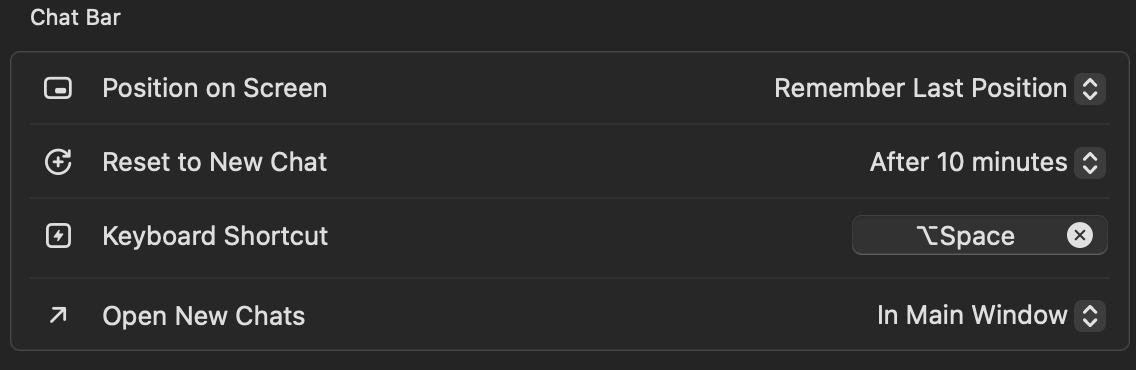
If the system will not accept the combination you pick, the menu goes back to your previous choice. Choose No shortcut to switch the shortcut off.
The shortcut only works while ZeroTwo is running and has a window to bring forward. By default ZeroTwo stays in the macOS menu bar when you close its window, so the shortcut can still bring it back. The Show in menu bar switch on the same page controls that, and with it off, closing the last window closes it and the shortcut has nothing to bring forward until you open ZeroTwo again. The Run on startup switch starts ZeroTwo when you log in to your computer.
Start a chat from the floating mini
The mini is a small companion that floats above your other windows (some menus call it the pet). It is on unless you have hidden it.
- Point at the mini. A small bar of icon buttons appears: New chat and Voice chat, plus a bell when there is activity to review.
- Select New chat. A box labeled Start new chat opens.
- Type your message and press Enter to send it. Press Esc to close the box without sending.
The + button beside the box lists your installed plugins so you can add one to the message. A chat started this way runs as a Work chat in a new chat that is not inside a project, and ZeroTwo does not switch the main window to it. Open it from the bell on the mini.
To hide or show the mini, use Hide pet or Show pet in the account menu, the Hide mini or Show mini button in Settings > Mini & Pets, or press Option + Space while ZeroTwo is the active app.
Start a voice chat from anywhere
Under Settings > Voice, the Voice chat hotkey row ("Start voice chat from anywhere on desktop") is off until you set it. Select it, press a combination that includes Command, Control or Option, and it is saved. If the combination is unavailable, the row says Shortcut is unavailable or conflicts with another shortcut. Press Backspace while it is recording to clear it. Pressing the hotkey brings ZeroTwo forward and starts a voice chat; on the Free plan it shows an upgrade prompt instead.
Shortcuts inside the app
While ZeroTwo is the active app, New quick chat (Option + Command + N on a Mac) starts a new chat in the window you are using. The keyboard shortcuts are listed under Settings > Shortcuts.