
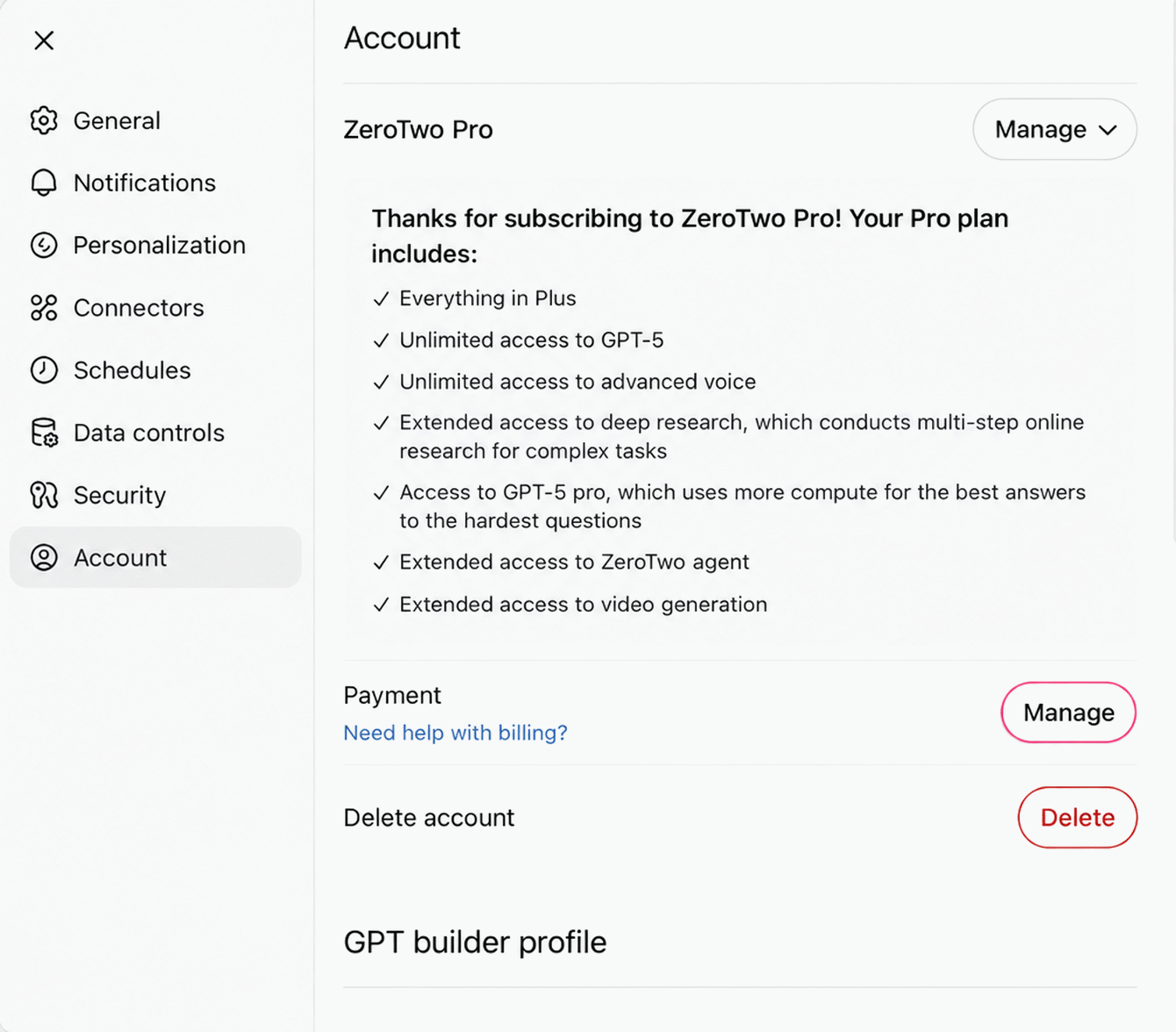
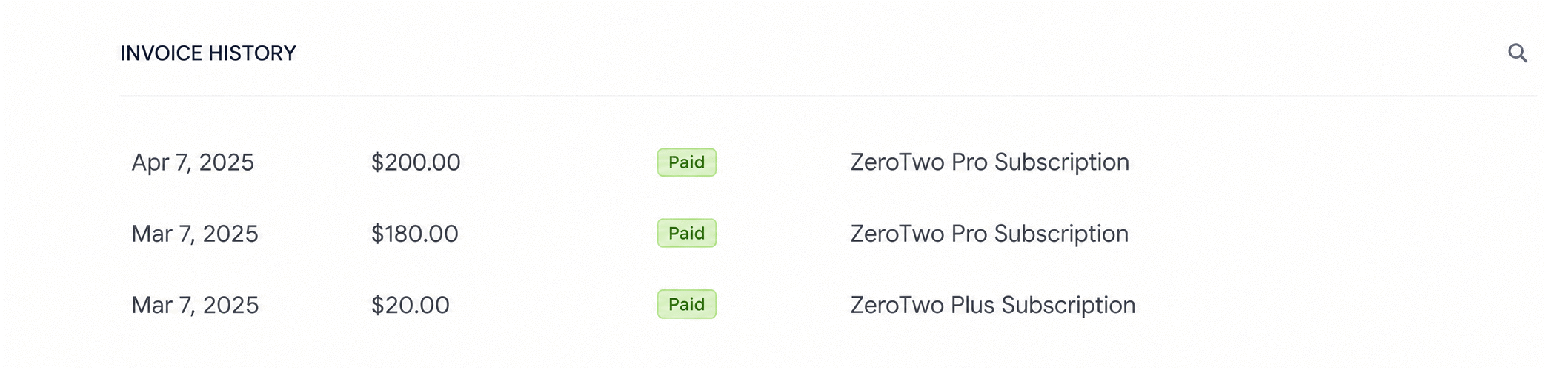
Your payments are listed under Settings, Billing, Transaction history. Select a payment to open its invoice or receipt.
Find a past invoice or receipt
- Open the account menu (your name at the bottom of the sidebar) and choose Settings.
- Select Billing.
- Under Transaction history, find the payment. Each row shows a description, the date, a status (Paid, Void, Open or Failed) and the amount.
- Select the row. The invoice or receipt page for that payment opens.
If a payment has no invoice or receipt link, its row cannot be opened.
See older payments
The list starts with your four most recent payments. If you have more, select View all to show up to your 20 most recent, and Show less to collapse it again. If you have not paid anything yet, the section says No transactions yet.
What the list includes
The list combines invoices for your plan with one-time payments that have no invoice, such as credit purchases. Invoices open an invoice page; one-time payments open a receipt. Draft invoices are not shown.
Payments made through Apple do not appear here. If your plan is billed through the App Store, Billing says Billing for this plan is managed through the App Store.
Check the details on your invoices
If you pay by card, Billing information on the same page holds the Billing email, Name and Address that ZeroTwo describes as the details used for invoices and receipts. Select Edit to change them.
On iPhone, iPad and Android
- iPhone and iPad: open Settings, then Billing in the Account group. Selecting a payment opens the invoice inside the app.
- Android: open Settings, then Usage & Billing. Selecting a payment opens it in a browser view.
Both apps show the same list, with the same View all and Show less controls.
For refunds, see how to request a refund. For an overview of billing settings, see where to manage billing.